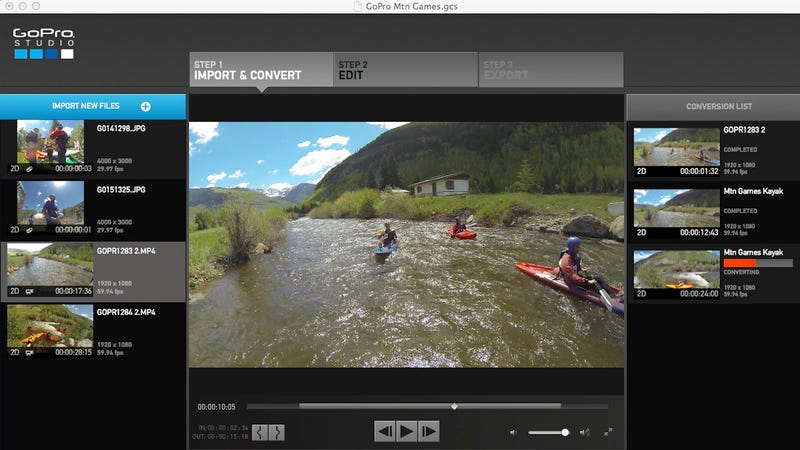
GoPro Studio instead of Windows Movie Maker

Import and enjoy your GoPro footage and create beautiful videos with just a few clicks.


GoPro, the Q-Tips of action cameras, recognized a problem. People are shooting tons of footage with their cameras, but are then letting it languish away on a dusty old hard drive, unseen and unedited. The California company is hoping to help correct that with new mobile apps and desktop editing software.
We recently got a preview of the new software while at the GoPro Mountain Games in Vail, CO. Here's a rundown of the new goodinesses. UPDATE:Studio 2.0 is now available. We've updated this article (originally published June 12th), with a bit of new info about the final version.

GoPro Studio 2.0

GoPro's video editing suite for desktops has been around for a while, but we suspect it doesn't get a ton of use. It is, essentially, a pared-down editing program, designed to make putting together your personal highlight reel easier. It provides a simple way to import footage, speed it up or slow it down, crop, and make image adjustments (like removing the fisheye lens distortion, or adjusting color or contrast). It's also handy for making a timelapse out of a bunch of stills, and perhaps best of all, it's much easier to work with footage shot at different resolutions/frame rates compared to even pro-level editing suites (no conversions required). The new feature, which actually might tempt people to use Studio 2.0 for action cam videos, is templates.
So, you know how GoPro has these amazing commercials and videos they put out? Some things are slowed down, some are sped up, and all the cuts are timed perfectly to the music. Most of us could never dream of cutting together a video that looks that good, because A) most of us aren't professional video editors, and B) even if we had the skillz, most of us don't have the time. Templates in Studio 2.0 basically takes the framework from one of those pro edits—music and all—and allows us to just drop in our own footage. It's a really good idea.
The process of making a video with a template goes like this:
Go through your clips, one by one. When you see a highlight that you want to include, you set an in point and an out point around it, then hit Convert Clip, and it will be added to a queue. This will convert that highlight into CineForm 444, a proprietary format designed to make video editing smoother (it's similar to Apple's ProRes in FinalCut). You can pull multiple highlights from the same clip, one at a time. Once you've gone through all the footage and pulled out your best bits, you convert the whole queue at once. This process is the same as it's always been. It takes some time to go through your footage—there's still no getting around that.
Here's where the fun starts. Hit Templates, and up pops a list of 4 preloaded templates, or you can choose to download nine other options. They are templates for some of GoPro's more popular videos, like Alana Blanchard surfing, or the Baby cam Superbowl commercial. Each one tells you how long the finished video will be and how many separate cuts go into it (see image above). Choose the one that best matches the amount of footage you have and length you want to end up with. For example if you've just got a few highlights from a bike ride, you can probably just pop them into the 30-second 4-cut template. If it's a whole weekend's adventure, maybe you want to go for the a two-minute 40-cut template.
Once you've picked the template you want, it opens up a timeline that looks like any other video editor, except the timeline is pre-populated with GoPro's clips from the original video. Each of those clips has a bullseye on it, which means you can drag one of your highlights onto that clip, which replaces it. The timing of the cuts and the motion properties (such as slo-mo) from the original sequence are preserved, but now it's your footage instead of theirs. Once it's in there, you can drag the start point around within the clip, so you make sure the best part is included. It's all extremely intuitive.
Once all of GoPro's clips are replaced with yours, you click Export. There are a bunch of built-in templates for export, too, which are made easy for the lay-person to understand. “Best for YouTube,” “Best for Vimeo,” “1080p,” stuff like that. There's “Custom,” too, if you actually know what you're doing. Once it exports, you're ready to upload it to wherever you want.
UPDATE: We got an early hands-on with the final Studio 2.0 software (to be released tomorrow), so I used that as an opportunity to cut together some footage I had from my buddy John's bachelor weekend raft trip. It took about an hour to log the clips, and maybe another hour to cut it together, if that. Given the small amount of time it took, I'm pretty pleased with the results:
There are a few caveats with the templates. You're stuck with the music in the original commercial. It's not that the music is bad, it's just that with thirteen templates at launch, we're going to start seeing a lot of action cam videos set to the same music. You also have GoPro branding at the start and end of the video (not replaceable), which makes your masterpiece feel a bit like a GoPro commercial. Naturally, GoPro likes it like this. The more people they have making commercials for them (for free) the better. Sure, you could take the export, put it into some other editing software and cut that out, but most people probably won't bother. UPDATE: The GoPro branding can now be replaced.
Of course, if you have video editing skills and don't mind investing the time, keep doing it yourself. The templates are really aimed at beginners and people who might shoot some awesome stuff, but then don't know how to cut it into something compelling. The idea is to enable more people to upload and share polished-looking videos, and if it works, then that's a cool thing. Personally, I have a hard drive full of action camera footage, but I've never felt like devoting the time or energy to making something really good out of it. But hell, I'd take an hour or two to make something if it's that easy. It's certainly better than it just sitting there doing nothing.
It should be noted that it's definitely not a perfect solution. It's gotten a lot better since our original hands-on, but there's still some pretty unintuitive behavior. For example, you can't drag a clip from one place on the timeline to another. Or if your clip isn't long enough to fit in a section, rather than slow it down and thus stretching it to fit (which is perhaps what you intended) it will simply block you from dropping it. So you have to go back to step one, re-convert a longer version of the clip, drag it back in, and thenslow it down. The title editor isn't particularly user-friendly, either.
These are mostly small gripes, though, and all of them could be improved with quick updates in the future. In the meantime, make sure you check these tips from professions for getting the best action camera footage.


GoPro - Quik | Desktop


'via Blog this'

Dopamine for Windows expertly handles your local music library

It’s crazy to think that I’ve been using Winamp as my go-to desktop music player for nearly two decades now. The app has always been the best looking tool for the job, and made light work of managing my collection as it grew from a handful of MP3 snippets to a 350GB library of locally stored tunes.
I stuck with Winamp even after I upgraded to Windows 10, but it doesn’t play nice with my 4K display. That’s why I’ve been looking for a worthy replacement, and Dopamine seems to check all the boxes on my list.
The free music player has a beautiful interface that blends in nicely with Windows and lets you customize its accent color and overall theme with light and dark options. It also works great in a small window size that highlights only the cover art, and displays notifications with playback controls every time a new song starts up.


Dopamine for Windows expertly handles your local music library


'via Blog this'

The 4 Best Alternatives to uTorrent on Windows

Remember when uTorrent was great? The upstart BitTorrent client was super-lightweight and trounced other popular BitTorrent clients. But that was long ago, before BitTorrent, Inc. bought uTorrent and crammed it full of junkware and scammy advertisements.

Screw that. Whether you need to download a Linux ISO or do whatever else you do with BitTorrent, you don’t have to put up with what uTorrent’s become. Use another BitTorrent client instead.

Note: this article was originally written a while ago, but due to uTorrent bundling some really shady stuff with their upgrades, we’ve republished this article.


The 4 Best Alternatives to uTorrent on Windows:


'via Blog this'

Dedicated Servers in the cloud with eSecureData

We have tried all sorts of server solutions in our office, with it always seeming to end up with server and hard drive failures resulting in huge amount of recovery and IT work.

We have tried to run a server locally now for 6 years, most recently with Windows Server 2012, and had nothing but issues and problems truth be told.

Our local office just is not setup to have a serious server running in a back office, not to mention the costs in hardware and power over the years.

In our efforts we discovered that servers fail because of a number of reasons which can be split into software and hardware issues. On the software side we found that the operating system froze up almost on a daily basis and the server needed to be restarted. This was our number one issue that we had to deal with on an almost daily basis.

We were now getting more and more into web development with the Army of Flying Monkeys and expanding to more staff  needing access to server resources. We kind of stumbled upon eSecureData and saw that they where unique (which in this market there is a serious number of copycats) compared to their competition. Their simple goal is to offer fast high quality service at cheaper prices than any of their competition. I thought what the heck, this is a no brainer.

So, in late 2014 we decided to can the local server and get our server into the cloud and I have not regretted doing this yet, which is a record for us as we're quite demanding.

So last year we went looking for a solution provider to give us all the normal bells and whistles but with a little bit more than others.

What we were looking for

We were looking for dedicated servers from a long time provider, with some history in the business. We were however looking for a new good data centre for a modern and up to date infrastructure, however alsi wanted it to have been running for 6-9 months to prove themselves out.

The Data Centre we were looking for

One of the most common problems out here in the Pacific, where connectivity is always a little selective, are data connection problems. This can really only be solved by organising multiple providers into your data centre and good redundant switching hardware inside of the data centre.

We had already decided that a data centre failure was much less likely than our own server freezing, but more likely than hardware failures.

We considered all the pros and cons and our biggest hardware problem locally was electrical problems. Electrical problems are the most clearly addressed by any tier 3 or 4 data centre. generators, UPS's and automatic switches are all standard requirements and any good data centre will have them.

Hardware failure 

We have been plagued with hardware failure in our local server. Even with the best equipment, HDD's fail (yes event the new and fancy  SSD ones too), power supplies and event the UPS's supporting them also fail etc.

What we hoped for in the dedicated server from eSecureData  was a good response time to these issues if and when they happened and honest answers on timelines. So far we have been very happy!

Assistance and Online Support

None of our team had any experience specifically in running a remote server, and so good support and help sections was a requirement for us. However we didn;t want over restrictive systems or too much hand holding.

They have unique help section where they put the answer right at the top of the section so you can get it immediately, and if you want to (or indeed have the time!) read the background info below later on.
The help section has literally hundreds of questions in it, so all you need to do is use the search for things like “How to set an Email Alert from a php Script on CentOS” and you get a couple of answers to get you fixed fast.

Their quick reference was a serious advantage so we could get up and running without having to search through hundreds of pages to find the right answer

eSecureData's support team 

eSecureData's support team are brilliant and actually really friendly. Their fast replies to our email enquiries is one of the things that will keep us with them long term for sure. We always seem to get an email answer back within 20-30 minutes if you can believe that. If you have been with any other Data Centre you know you could be waiting up to 24 hours sometimes before you get a reply.

We would have no problem in  recommending eSecureData.com for hosting your website for sure.
Over all we are more than happy with eSecureData and would recommend them for anyone looking for a dedicated server or website hosting solution.

They have provided us with 100% uptime so far  and with the brilliant support we are not planning on moving anywhere!

About ESecure Data

Deciding on a dedicated server hosting company can be a complex matter. eSecureData.com outweighs the competition on several levels. eSecureData offers:
  1. Sensible Pricing - eSecureData.com offers pricing so far below industry standards that that we outshine the competition hands down. 
  1.  Serious Bandwidth - With unmetered bandwidth, eSecureData.com is here for people who actually plan on having success.
  1. Real-World Hard Disks - At eSecureData.com, we don't fool around with tiny hard drives. All eSecureData servers come with real-world drives, ranging from 500GB at the bottom end on up to 12,000GB at the high end. 
  1. No-Excuses Data Centrer - We have diesel generators, halon fire protection, multiple backbone-class Internet feeds, 24/7/365 security, 24/7/365 technical staff, AAA downtown locations, biometric and swipe-card access. 
  1. Real Intel Quad Core Xeon CPUs. No Celerons - Celerons are fine for low-demand desktop computers, but servers are constantly processing multiple tasks at the same time and Celerons simply cannot keep up.

First peek at the next Ubuntu 15.04 Vivid Vervet

Ubuntu 15.04 is here – almost. The first beta of Vivid Vervet has been delivered, and with it have come images of the penguin flock that nestles on this OS.

I looked at Xubuntu, Kubuntu, Ubuntu GNOME and Ubuntu MATE but there’s also Lubuntu and the China-centric Ubuntu Kylin, which I didn’t test.

These are beta releases and should be considered for testing purposes only, but the advantage of these early versions is that features have been frozen and you can get an early glimpse of what's coming for each of the popular flavours in the 15.04 foundation. From this point on, the only changes will be bug fixes.

The biggest news is that Ubuntu MATE has finally gained an "official" blessing from Canonical. That doesn't mean much right now – other than the fact that you can now download it from a Canonical URL – but it is obviously good news for the future of Ubuntu MATE.

Among other things, this will mean there's a now an easy-to-grab daily image if you want to help test and stay abreast of what's new.

If you're dying to try MATE with Ubuntu behind it you can grab the beta, but I'd strongly suggest waiting. The Ubuntu MATE 15.04 beta is very rough and lacks quite a few things you'll find working just fine in, for example, the Mint-based version. That said, some of the more noticeable changes in the last couple of MATE releases – notably improvements to the file managers, like folder colours and customisable sidebars – are present in this release.

Ubuntu 15.04 Mate

Ubuntu MATE: acceptance at last
The key to getting a reasonable experience out of the Ubuntu MATE beta is to install an extra PPA, which fixes some of the problems that occur because MATE 1.8x is not fully compatible with the version of glibc that's in 15.04. Check out the Ubuntu MATE release announcement for details on how to fix that issue.
Despite the current state of the beta, if you have fond memories of Ubuntu 9.10 or so, back when GNOME 2.x was the default desktop, Ubuntu MATE is probably your best bet for recreating the experience (and of course improving on it, since MATE has quite a few nice tricks up its sleeve that were not part of GNOME 2.x).
If the torrent I downloaded is any indication – it had almost triple the number of seeders compared to the rest of the flavors – Ubuntu MATE is going to be a very popular release. That said, I'd wait for the second beta at least before jumping in with both feet.
MATE may be the attention-grabbing newcomer, but perhaps the biggest changes await users of Kubuntu with KDE.
Kubuntu 15.04 will be the first Kubuntu release to default to the impressive new Plasma 5 interface. Plasma 5 is perhaps most notable for its visual changes, which see KDE embracing a more streamlined, "flat" interface, but it's also the first version of KDE to be powered by Qt 5 and the recently released KDE Frameworks 5.
Ubuntu 15.04 Kubuntu

Kubuntu 15.04 defaults to Plasma 5
Kubuntu comes with KDE Applications 14.12. A number of the applications have been ported to KDE Frameworks 5, but fortunately even those that haven't should "fit in seamlessly", according to theKubuntu announcement. I did not encounter any serious problems in my testing, but it is a beta, of course.
One of the more lightweight Ubuntu flavours, Xubuntu 15.04 is shaping up to be a relatively minor release, or at least the portions pertaining to the Xfce desktop are.
Ubuntu 15.04 Xubuntu

A host of small changes in Xubuntu
There's a new LightDM settings tool to control your login screen, some new wallpaper, a series of updates to various Xfce tools like window previews in xfwm4, an "intelligent" hiding mode for panels and much improved support for multiple monitors. The Thunar file manager also gets some improved keyboard navigation in this release. For more details on all the smaller changes, check out theXubuntu release announcement.

First peek at the next Ubuntu 15.04 nester line-up • The Register:


'via Blog this'

Why Ubuntu 14.10 Utopic Unicorn Update

Ubuntu 14.10—or “Utopic Unicorn”—is now out. It’s a standard release of Ubuntu, not a long term support release like 14.04 “Trusty Tahir,” and at first glance Utopic isn’t the most exciting update. It doesn’t even have new wallpaper! But peer a little closer and you’ll see some huge changes being worked on for Ubuntu. In fact, the alterations are such a massive undertaking that they’re not yet stable enough to be part of the main Ubuntu desktop image.
Massive changes are coming for Ubuntu. Utopic Unicorn is the calm before the storm—and it signifies just how mature the Linux ecosystem has become in recent years...


Why Ubuntu 14.10 Utopic Unicorn's humble changes are the calm before the storm | PCWorld:


The Best System Tweaker for Windows

Windows users have a ton of system tweakers to choose from, but we love the Ultimate Windows Tweaker the most. It has a ton of different tweaks you can perform, it's portable

The Best System Tweaker for Windows

Android, my choice of mobile OS

Don't suppose this will come as a surprise to anyone here, I am an Android, open sourse, believer.

So here is my little list of apps on all my devices:

Google Based Apps

As I am a Google fone user, and an original Nexus 7 user, I am pretty embedded into Google Apps by defualt.

  • Chrome
  • GMail
  • Google Drive
  • Google Calendar
  • Youtube
  • Currents
  • Google Sky (who doesn't play with this and smile?)
  • Google maps and navigation

Safety and Disaster Alerts

I live in the tropics and quite like knowing what weather and natural disaster maybe on the horizon...
  • Pacific Ocean Tsunami Warning app
  • Disaster Alert

News

Simple new apps for me, nothing too much
  • BBC News
  • News republic: like how news is presented

Utilities

  • Evernote: synching all my notes across all devices (hacks be damned!)

Social


Convert a DVD Movie Directly to AVI with FairUse Wizard


Are you looking for a way to backup your DVD movie collection to AVI?  Today we’ll show you how to rip a DVD movie directly to AVI with FairUse Wizard.

About FairUse Wizard
FairUse Wizard 2.9 uses the DivX, Xvid, or h.264 codec to convert DVD to an AVI file. It comes in both a free version and commercial version. The free, or “Light” version, can create files up 700MB while the commercial version can output a 1400MB file. This will allow you to back up your movies to CD, or even multiple movies on a single DVD.
FairUse Wizard states that it does not work on copy protected discs, but we’ve seen it work on all but some of the most recent copy protection. For this tutorial we’re using the free Light Edition to convert a DVD to AVI. They also offer a commercial version that you can get for $29.99 and it offers even more encoding possibilities for converting video to you portable digital devices.

Convert a DVD Movie Directly to AVI with FairUse Wizard 2.9 - How-To Geek:

'via Blog this'