Windows XP is designed to be compatible with the broadest possible amount of hardware and software. As a result, more operating system services than necessary are started or modules you don’t need are loaded.
This can lead to problems; in extreme cases, installation can take hours, lots of unwanted and sometimes useless programs and services are installed and the user interface is optimised simply to look pretty. All this can be to the detriment of system performance and reliability.
If you’ve installed Windows XP a couple of times, you’ll be familiar with the amount of time you need to spend customising it to your requirements – installing up-to-date drivers and getting rid of unnecessary ballast, with the aim of creating a fast, slim and secure operating system from the resource-gobbling monster that is the default Windows XP.
Nlite to the rescueOne easy way to get to the root of the problem is to use the freeware program Nlite to create a made-to-measure Windows XP installation CD. The biggest benefit of this is the almost endless configuration options this procedure offers.
Whether you are talking about integrating service packs, hotfixes and drivers, removing unwanted components or adding Registry tweaks, you can use this remarkable little program to create your own personalised XP installation CD.
The software, which is just 1.37MB in size, is available on the Nlite website. We used version 1 Beta 6 and, despite its beta status, it gave us no problems.
The program has since moved to Release Candidate 5 status. The program is only free for non-commercial personal use.
The big benefit of this free software is its modular construction: you don’t have to perform all the XP modifications shown in this feature in the sequence shown.
You can use the program’s main menu to decide exactly which XP components you want to include on your personalised installation CD and which to leave out.
This makes it possible, for example, to make updated Windows XP CDs that include hotfixes, altered system settings, or with unwanted XP components left out.
You do need about three hours and a bit of patience to use this utility effectively. Whatever you do, make sure after creating your Mini XP CD you take time to test it.
To test your customised CD, use an empty partition or separate hard disk to reduce the risk of losing your data. Alternatively, it’s an ideal use for software like Microsoft Virtual PC or Vmware Workstation.
You can use virtual PCs created with these utilities to carry out a risk-free installation of the Nlite-modified XP version. You don’t even have to burn a CD or DVD, as both Virtual PC and VMware can use ISO image files directly to install the OS.
Whichever route you take, you’ll need a valid Windows XP licence key, and the installation will still be subject to the Microsoft licensing and product activation requirements.
Feature: Improve Windows XP and boost performance - Personal Computer World
Showing posts with label Windows. Show all posts
Showing posts with label Windows. Show all posts

Copywhiz (Piky Basket): Efficient ways of copying files on Windows (7/Vista/XP) - Copywhiz: Flexible file copy program for Windows 7/Vista/XP
Copywhiz was formerly known as 'Piky Basket'.
Copywhiz enhances your file copy experience in Windows. It offers more flexibility when copying files by letting you choose which type of files to copy & which to ignore.
With its popular collect & paste-at-once feature, Copywhiz lets you pick files from different folders and paste them all together.
Copywhiz enhances your file copy experience in Windows. It offers more flexibility when copying files by letting you choose which type of files to copy & which to ignore.
With its popular collect & paste-at-once feature, Copywhiz lets you pick files from different folders and paste them all together.
Highlights
-
Gain Control
Copywhiz allows you to copy only new or modified files or copy files based on file name or extension. You have the complete control. -
Save Time
Copywhiz lets you collect files from different folders and paste them all together. Saves time & effort. -
Play Safe
When a duplicate file is found, Copywhiz allows you to replace the existing file if it is older or rename the file before copying the new file. -
Operate Hands-Free
Use Copywhiz command line options to automate file copy tasks. Copy files to multiple computers or multiple folders in a single click.


-
Enjoy Convenience
Use Copywhiz right from within Windows Explorer. Also supports other file managers like Total Commander, xplorer2 , Directory Opus (dopus), RecentX, XYPlorer & ExplorerXP. -
Be Right The First Time
Review list of files that will actually be copied. Ensure that no important file is left behind & no unnecessary file is copied. -
Stay Relaxed
Copywhiz lets you retry or skip a file on error. It does not stop abruptly if a file is in use or if the disk is full. -
Save The Effort
Wish to copy the same set of files again? Just save the list in Copywhiz & re-use it in future.


Copywhiz (Piky Basket): Efficient ways of copying files on Windows (7/Vista/XP) - Copywhiz: Flexible file copy program for Windows 7/Vista/XP
How to: install Windows (any version from XP to Win7) from a USB/flash drive | dotTech
I just posted about how one can attain a 90 day trial of Windows 7 Enterprise to see if you really want to purchase Win7 or not. In the post I mentioned to install Windows 7 Enterprise you will need to put the .ISO you download on a DVD or on a bootable USB. Now I figure I should explain how to create a bootable USB.
For the longest time trying to install Windows from a USB was a pain. You had to do this, do that, blah, blah. However recently freeware programs have been created to help make this task easier. Today I am going to tell you about two of such programs.
How to: install Windows (any version from XP to Win7) from a USB/flash drive | dotTech
For the longest time trying to install Windows from a USB was a pain. You had to do this, do that, blah, blah. However recently freeware programs have been created to help make this task easier. Today I am going to tell you about two of such programs.
How to: install Windows (any version from XP to Win7) from a USB/flash drive | dotTech
Ultimate List of Free Windows Vista Software & Resources from Microsoft
Ultimate List of Free Windows Vista Software & Resources from Microsoft
WINDOWS VISTA GOODIES
Ultimate List of Free Windows Vista Software & Resources from Microsoft
The Road to Know Where
WINDOWS VISTA GOODIES
Ultimate List of Free Windows Vista Software & Resources from Microsoft
The Road to Know Where
35 HIDDEN APPLICATIONS IN WINDOWS XP - FixYa
35 HIDDEN APPLICATIONS IN WINDOWS XP
Here is a list of hidden applications which are quite useful...
To run any of these applications go to Start > Run and type the executable name (ie charmap.exe). 1) Character Map = charmap.exe (very useful for finding unusual characters)
2) Disk Cleanup = cleanmgr.exe
3) Clipboard Viewer = clipbrd.exe (views contents of window$ clipboard)
4) Dr Watson = drwtsn32.exe (Troubleshooting tool)
5) DirectX diagnosis = dxdiag.exe (Diagnose & test DirectX, video & sound cards)
6) Private character editor = eudcedit.exe (allows creation or modification of characters)
7) IExpress Wizard = iexpress.exe (Create self-extracting / self-installing package)
8) Micro$oft Synchronization Manager = mobsync.exe (appears to allow synchronization of files on the network for when working offline. Apparently undocumented).
9) window$ Media Player 5.1 = mplay32.exe (Retro version of Media Player, very basic).
10) ODBC Data Source Administrator = odbcad32.exe (something to do with databases)
Full list here: 35 HIDDEN APPLICATIONS IN WINDOWS XP - FixYa
Here is a list of hidden applications which are quite useful...
To run any of these applications go to Start > Run and type the executable name (ie charmap.exe). 1) Character Map = charmap.exe (very useful for finding unusual characters)
2) Disk Cleanup = cleanmgr.exe
3) Clipboard Viewer = clipbrd.exe (views contents of window$ clipboard)
4) Dr Watson = drwtsn32.exe (Troubleshooting tool)
5) DirectX diagnosis = dxdiag.exe (Diagnose & test DirectX, video & sound cards)
6) Private character editor = eudcedit.exe (allows creation or modification of characters)
7) IExpress Wizard = iexpress.exe (Create self-extracting / self-installing package)
8) Micro$oft Synchronization Manager = mobsync.exe (appears to allow synchronization of files on the network for when working offline. Apparently undocumented).
9) window$ Media Player 5.1 = mplay32.exe (Retro version of Media Player, very basic).
10) ODBC Data Source Administrator = odbcad32.exe (something to do with databases)
Full list here: 35 HIDDEN APPLICATIONS IN WINDOWS XP - FixYa
Superior Alternatives to Crappy Windows Software
Application to Avoid: Adobe Reader
Indictment: Bloatware
Superior Alternative(s): FoxIt Reader or Sumatra PDF
Notes: There are much worse offenders on this list than Adobe Reader, which has gotten more performant over the years. Keep in mind that Adobe deals with some PDF's (like ones with editable form fields) better than FoxIt. If you don't want to ditch Adobe Reader entirely, here's how to tweak Adobe 8 for speed.
Application to Avoid: AOL Instant Messenger
Indictment: One-trick pony with ads included made by a company that holds its customers hostage. (Speaking of, here's how to cancel your AOL account.)
Superior Alternative(s): Digsby or Pidgin or Miranda or Trillian or Meebo
Notes: The moral of the story is you should avoid anything that comes on six zillion free CDs that swamp your apartment building's mailroom.
Application to Avoid: Browser Toolbars (that you didn't seek out yourself)
Indictment: Notorious for hijacking your browser, phoning home with your online activity, taking up precious real estate, and not offering any features you actually want.
Superior Alternative(s): Your browser's built-in search box and a few good bookmarklets
Notes: Don't get us wrong: Not all toolbars are bad, but do beware when they get tacked onto the end of a totally unrelated software installation and you have to opt OUT of them.
Application to Avoid: Internet Explorer (6 and 7)
Indictment: Lacks features any self-respecting modern web browser had two versions ago
Superior Alternative(s): Firefox
Notes: Because IE gloms onto the innards of your operating system so inextricably, you can't truly uninstall it. Just set your system's default browser to Firefox to avoid launching IE ever.
Application to Avoid: iTunes
Indictment: Too controlling, gleefully enforces DRM, can't monitor folders for new music
Superior Alternative(s): foobar200 (more on foobar2000), Songbird, or WinAmp
Notes: We—ok, I—actually like and use iTunes, ever since that time Steve Jobs waved that iPhone over my forehead and chanted. These recommendations only for those with particularly sensitive digital music sensibilities.
Application to Avoid: Java Runtime Environment
Indictment: You ugly and yo' Mama dresses you funny
Superior Alternative(s): None.
Notes: If you want to run a Java app, without the runtime you're SOL. Java, we love the idea of you. Just not the coffee cup staring at us from the system tray.
Application to Avoid: Limewire
Indictment: Where do we start? Haven't launched Limewire since our college days, and don't plan to ever look back
Superior Alternative(s): Frostwire
Notes: Bonus: Frostwire does BitTorrent, too.
Application to Avoid: MSN Messenger
Indictment: Little ugly non-faces with a red X over them plant themselves in your system tray with no obvious way to uninstall or quit it
Superior Alternative(s): Digsby or Pidgin or Miranda or Trillian or Meebo
Notes: Uninstall MSN Messenger by going to the "Add/Remove Windows Components" area in Control Panel's "Add/Remove Programs" area.
Application to Avoid: Nero Suite
Indictment: Costly
Superior Alternative(s): CDBurnerXP
Notes: The free CDBurnerXP may not do everything Nero does, but for the price it does a whole lot.
Application to Avoid: McAfee/Norton/Symantec Anti-Virus
Indictment: Naggy subscription costs after the free trial on your new PC runs out
Superior Alternative(s): AVG or Avast
Notes: See why many readers have ditched their AV software.
Application to Avoid: QuickTime
Indictment: Plants itself in your startup and system tray
Superior Alternative(s): QuickTime Alternative
Notes: While QuickTime doesn't annoy us THAT much, it still annoys us a little—especially since it comes with Apple's Software Update. (See Safari's Honorable Mention, below.)
Application to Avoid: RealPlayer
Indictment: We're still so traumatized about RealPlayer's repeated takeover of our PC back in 2004 we're seeing a special doctor that's killing that part of our memory
Superior Alternative(s): Real Alternative
 Application to Avoid: Windows Media Player
Indictment: WTF interface, chokes on clips in common formats
Superior Alternative(s): VLC
Application to Avoid: WinZip
Indictment: Cost
Superior Alternative(s): 7-Zip or ALZip
Honorable mention: While Apple's Safari web browser for Windows itself is not crappy, Apple's Software Update trying to push it on you completely sucks. Here's how to opt out of installing Safari and stop the nag.
What crappy apps or better alternatives did we miss? Did we wrongly accuse one of your favorites? Let us know in the comments.
Gina Trapani, the editor of Lifehacker, still hasn't forgiven RealPlayer. Her weekly feature, Geek to Live, appears every Monday on Lifehacker. Subscribe to the Geek to Live feed to get new installments in your newsreader.
Indictment: Bloatware
Superior Alternative(s): FoxIt Reader or Sumatra PDF
Notes: There are much worse offenders on this list than Adobe Reader, which has gotten more performant over the years. Keep in mind that Adobe deals with some PDF's (like ones with editable form fields) better than FoxIt. If you don't want to ditch Adobe Reader entirely, here's how to tweak Adobe 8 for speed.
Application to Avoid: AOL Instant Messenger
Indictment: One-trick pony with ads included made by a company that holds its customers hostage. (Speaking of, here's how to cancel your AOL account.)
Superior Alternative(s): Digsby or Pidgin or Miranda or Trillian or Meebo
Notes: The moral of the story is you should avoid anything that comes on six zillion free CDs that swamp your apartment building's mailroom.
Application to Avoid: Browser Toolbars (that you didn't seek out yourself)
Indictment: Notorious for hijacking your browser, phoning home with your online activity, taking up precious real estate, and not offering any features you actually want.
Superior Alternative(s): Your browser's built-in search box and a few good bookmarklets
Notes: Don't get us wrong: Not all toolbars are bad, but do beware when they get tacked onto the end of a totally unrelated software installation and you have to opt OUT of them.
Application to Avoid: Internet Explorer (6 and 7)
Indictment: Lacks features any self-respecting modern web browser had two versions ago
Superior Alternative(s): Firefox
Notes: Because IE gloms onto the innards of your operating system so inextricably, you can't truly uninstall it. Just set your system's default browser to Firefox to avoid launching IE ever.
Application to Avoid: iTunes
Indictment: Too controlling, gleefully enforces DRM, can't monitor folders for new music
Superior Alternative(s): foobar200 (more on foobar2000), Songbird, or WinAmp
Notes: We—ok, I—actually like and use iTunes, ever since that time Steve Jobs waved that iPhone over my forehead and chanted. These recommendations only for those with particularly sensitive digital music sensibilities.
Application to Avoid: Java Runtime Environment
Indictment: You ugly and yo' Mama dresses you funny
Superior Alternative(s): None.
Notes: If you want to run a Java app, without the runtime you're SOL. Java, we love the idea of you. Just not the coffee cup staring at us from the system tray.
Application to Avoid: Limewire
Indictment: Where do we start? Haven't launched Limewire since our college days, and don't plan to ever look back
Superior Alternative(s): Frostwire
Notes: Bonus: Frostwire does BitTorrent, too.
Application to Avoid: MSN Messenger
Indictment: Little ugly non-faces with a red X over them plant themselves in your system tray with no obvious way to uninstall or quit it
Superior Alternative(s): Digsby or Pidgin or Miranda or Trillian or Meebo
Notes: Uninstall MSN Messenger by going to the "Add/Remove Windows Components" area in Control Panel's "Add/Remove Programs" area.
Application to Avoid: Nero Suite
Indictment: Costly
Superior Alternative(s): CDBurnerXP
Notes: The free CDBurnerXP may not do everything Nero does, but for the price it does a whole lot.
Application to Avoid: McAfee/Norton/Symantec Anti-Virus
Indictment: Naggy subscription costs after the free trial on your new PC runs out
Superior Alternative(s): AVG or Avast
Notes: See why many readers have ditched their AV software.
Application to Avoid: QuickTime
Indictment: Plants itself in your startup and system tray
Superior Alternative(s): QuickTime Alternative
Notes: While QuickTime doesn't annoy us THAT much, it still annoys us a little—especially since it comes with Apple's Software Update. (See Safari's Honorable Mention, below.)
Application to Avoid: RealPlayer
Indictment: We're still so traumatized about RealPlayer's repeated takeover of our PC back in 2004 we're seeing a special doctor that's killing that part of our memory
Superior Alternative(s): Real Alternative
Application to Avoid: Windows Media PlayerIndictment: WTF interface, chokes on clips in common formats
Superior Alternative(s): VLC
Application to Avoid: WinZip
Indictment: Cost
Superior Alternative(s): 7-Zip or ALZip
Honorable mention: While Apple's Safari web browser for Windows itself is not crappy, Apple's Software Update trying to push it on you completely sucks. Here's how to opt out of installing Safari and stop the nag.
What crappy apps or better alternatives did we miss? Did we wrongly accuse one of your favorites? Let us know in the comments.
Gina Trapani, the editor of Lifehacker, still hasn't forgiven RealPlayer. Her weekly feature, Geek to Live, appears every Monday on Lifehacker. Subscribe to the Geek to Live feed to get new installments in your newsreader.
Superior Alternatives to Crappy Windows Software
Superior Alternatives to Crappy Windows Software - Downloads
It may be the year 2008, but a whole lot of sucktacular software still rears its ugly head on PC's everywhere, even when better-behaved options are freely available. Whether it's molasses-slow bloatware, shameless adware, anemic default apps, or "Your trial period has expired!" nagware, it's time to replace stinky Windows software with its superior (but lesser-known) alternative. Last week we asked what software you should never install on your PC, and over 200 comments later, you compiled quite a list. Today we're going to take a walk down the Crapware Hall of Shame, point and laugh at the worst offenders, and highlight some better choices. Photo by chelseagirl.
Lifehacker - Superior Alternatives to Crappy Windows Software - Downloads
Application to Avoid: Adobe Reader
Indictment: Bloatware
Superior Alternative(s): FoxIt Reader or Sumatra PDF
Notes: There are much worse offenders on this list than Adobe Reader, which has gotten more performant over the years. Keep in mind that Adobe deals with some PDF's (like ones with editable form fields) better than FoxIt. If you don't want to ditch Adobe Reader entirely, here's how to tweak Adobe 8 for speed.
Application to Avoid: AOL Instant Messenger
Indictment: One-trick pony with ads included made by a company that holds its customers hostage. (Speaking of, here's how to cancel your AOL account.)
Superior Alternative(s): Digsby or Pidgin or Miranda or Trillian or Meebo
Notes: The moral of the story is you should avoid anything that comes on six zillion free CDs that swamp your apartment building's mailroom.
Application to Avoid: Browser Toolbars (that you didn't seek out yourself)
Indictment: Notorious for hijacking your browser, phoning home with your online activity, taking up precious real estate, and not offering any features you actually want.
Superior Alternative(s): Your browser's built-in search box and a few good bookmarklets
Notes: Don't get us wrong: Not all toolbars are bad, but do beware when they get tacked onto the end of a totally unrelated software installation and you have to opt OUT of them.
Application to Avoid: Internet Explorer (6 and 7)
Indictment: Lacks features any self-respecting modern web browser had two versions ago
Superior Alternative(s): Firefox
Notes: Because IE gloms onto the innards of your operating system so inextricably, you can't truly uninstall it. Just set your system's default browser to Firefox to avoid launching IE ever.
Application to Avoid: iTunes
Indictment: Too controlling, gleefully enforces DRM, can't monitor folders for new music
Superior Alternative(s): foobar200 (more on foobar2000), Songbird, or WinAmp
Notes: We—ok, I—actually like and use iTunes, ever since that time Steve Jobs waved that iPhone over my forehead and chanted. These recommendations only for those with particularly sensitive digital music sensibilities.
Application to Avoid: Java Runtime Environment
Indictment: You ugly and yo' Mama dresses you funny
Superior Alternative(s): None.
Notes: If you want to run a Java app, without the runtime you're SOL. Java, we love the idea of you. Just not the coffee cup staring at us from the system tray.
Application to Avoid: Limewire
Indictment: Where do we start? Haven't launched Limewire since our college days, and don't plan to ever look back
Superior Alternative(s): Frostwire
Notes: Bonus: Frostwire does BitTorrent, too.
Application to Avoid: MSN Messenger
Indictment: Little ugly non-faces with a red X over them plant themselves in your system tray with no obvious way to uninstall or quit it
Superior Alternative(s): Digsby or Pidgin or Miranda or Trillian or Meebo
Notes: Uninstall MSN Messenger by going to the "Add/Remove Windows Components" area in Control Panel's "Add/Remove Programs" area.
Application to Avoid: Nero Suite
Indictment: Costly
Superior Alternative(s): CDBurnerXP
Notes: The free CDBurnerXP may not do everything Nero does, but for the price it does a whole lot.
Application to Avoid: McAfee/Norton/Symantec Anti-Virus
Indictment: Naggy subscription costs after the free trial on your new PC runs out
Superior Alternative(s): AVG or Avast
Notes: See why many readers have ditched their AV software.

Application to Avoid: QuickTime
Indictment: Plants itself in your startup and system tray
Superior Alternative(s): QuickTime Alternative
Notes: While QuickTime doesn't annoy us THAT much, it still annoys us a little—especially since it comes with Apple's Software Update. (See Safari's Honorable Mention, below.)
Application to Avoid: RealPlayer
Indictment: We're still so traumatized about RealPlayer's repeated takeover of our PC back in 2004 we're seeing a special doctor that's killing that part of our memory
Superior Alternative(s): Real Alternative
Indictment: WTF interface, chokes on clips in common formats
Superior Alternative(s): VLC
Application to Avoid: WinZip
Indictment: Cost
Superior Alternative(s): 7-Zip or ALZip
Honorable mention: While Apple's Safari web browser for Windows itself is not crappy, Apple's Software Update trying to push it on you completely sucks. Here's how to opt out of installing Safari and stop the nag.
What crappy apps or better alternatives did we miss? Did we wrongly accuse one of your favorites? Let us know in the comments.
Gina Trapani, the editor of Lifehacker, still hasn't forgiven RealPlayer. Her weekly feature, Geek to Live, appears every Monday on Lifehacker. Subscribe to the Geek to Live feed to get new installments in your newsreader.
Lifehacker - Superior Alternatives to Crappy Windows Software - Downloads
DiskDigger - free data recovery made easy | DmitryBrant.com
DiskDigger can recover files from any type of media that your computer can read. This includes USB flash drives, memory cards (SD, CompactFlash, Memory Stick, etc), and of course your hard drive. The types of files that it recovers include photos, videos, music, documents, and many other formats.
DiskDigger - free data recovery made easy | DmitryBrant.com
DiskDigger can even scan reformatted or badly formatted disks (disks to which Windows can’t assign a drive letter), and even disks with bad sectors. It bypasses the Windows file system drivers and scans your disk directly. It has its own built-in support for the following file systems: FAT12 (floppy disks), FAT16 (older memory cards), FAT32 (newer memory cards and hard disks), NTFS (newer hard disks), and exFAT (Microsoft’s new successor to FAT32).
DiskDigger is also very compact and portable. The entire program is a single executable file that you can run from anywhere. There’s nothing to “install,” and the program doesn’t leave any trace of having been run.
You may find DiskDigger useful if…
- you deleted one or more photos from a memory card by accident, and want them restored.
- you deleted one or more photos from a memory card on purpose, but now want them restored.
- you deleted some documents from your USB flash drive, and want to recover them.
- you came across an old hard drive of yours (or someone else’s) that’s been reformatted, and would like to see what its previous contents were.
- you’ve “securely wiped” your media, and want to make sure that your media has actually been wiped correctly.
- you’re just curious about what old deleted files are still present on your memory cards or hard drives.
DiskDigger is also a work in progress. This means that new features will be added very frequently, including support for more file formats, more configuration options, etc., so check back for updates.
DiskDigger - free data recovery made easy | DmitryBrant.com
NewOrder - news: Securing Your Windows PC
 This guide will be on securing your Windows computer from local and remote attacks by using certain security features that come with Windows to protect your information as well as the use of software to help protect your computer from unauthorized access by intruders.
It will also deal with personal privacy and how to keep your important information from getting in the hands of others. Hopefully, when you are done reading this you will have a better idea on what should be done to keep your PC and your personal information from being exploited by curious or malicious users.
Full list here: NewOrder - news: Securing Your Windows PC
Windows PE 2.0
Windows PE 2.0 is essentially mini-Vista. It is a deliberately stripped down version of Windows Vista with 3 primary purposes. Installing Windows operating systems, troubleshooting problems with Windows operating systems, and recovery from corrupted Windows operating systems.
Svrops.com - Windows PE 2.0
WinPE (Windows Preinstallation Environment) has been around for some time, but until now was only available to corporate customers and system builders (OEMs). Now in version 2.0, WinPE is freely available to anyone who wants to download it. However, don’t think it's as easy as downloading a file and creating a WinPE CD - Oh no. It could be, but Microsoft has not made the process easy. The following will show you how to create a bootable WinPE CD/DVD, and/or a bootable WinPE UFD (USB Flash Drive).
Svrops.com - Windows PE 2.0
20 Things the Average Person Doesn’t Know About Windows XP » Blog Archive Alice Hill’s Real Tech News - Independent Tech
By Unknown Writer
Via Digg
1. It boasts how long it can stay up. Go to the Command Prompt in the Accessories menu from the All Programs start button option, and then type ’systeminfo’. The computer will produce a lot of useful info, including the uptime. If you want to keep these, type ’systeminfo > info.txt’. This creates a file called info.txt you can look at later with Notepad. (Professional Edition only).

2. You can delete files immediately, without having them move to the Recycle Bin first. Go to the Start menu, select Run… and type ‘gpedit.msc’; then select User Configuration, Administrative Templates, Windows Components, Windows Explorer and find the Do not move deleted files to the Recycle Bin setting. Set it. Poking around in gpedit will reveal a great many interface and system options, but take care — some may stop your computer behaving as you wish. (Professional Edition only).
3. You can lock your XP workstation with two clicks of the mouse. Create a new shortcut on your desktop using a right mouse click, and enter ‘rundll32.exe user32.dll,LockWorkStation’ in the location field. Give the shortcut a name you like. That’s it — just double click on it and your computer will be locked. And if that’s not easy enough, Windows key + L will do the same.
4. XP hides some system software you might want to remove, such as Windows Messenger, but you can make it show everything. Using Notepad or Edit, edit the text file /windows/inf/sysoc.inf, search for the word ‘hide’ and remove it. You can then go to the Add or Remove Programs in the Control Panel, select Add/Remove Windows Components and there will be the software and you can now uninstall it.
5. For those skilled in the art of DOS batch files, XP has a number of interesting new commands. These include ‘eventcreate’ and ‘eventtriggers’ for creating and watching system events, ‘typeperf’ for monitoring performance of various subsystems, and ’schtasks’ for handling scheduled tasks. As usual, typing the command name followed by /? will give a list of options.
6. XP has IP version 6 support — the next generation of IP. Unfortunately this is more than your ISP has, so you can only experiment with this on your LAN. Type ‘ipv6 install’ into Run… (it’s OK, it won’t ruin your existing network setup) and then ‘ipv6 /?’ at the command line to find out more. If you don’t know what IPv6 is, don’t worry.
7. You can at last get rid of tasks on the computer from the command line by using ‘taskkill /pid’ and the task number, or just ‘tskill’ and the process number. Find that out by typing ‘tasklist’, which will also tell you a lot about what’s going on in your system.
8. XP will treat Zip files like folders, which is nice if you’ve got a fast machine. On slower machines, you can make XP leave zip files alone by typing ‘regsvr32 /u zipfldr.dll’ at the command line. If you change your mind later, you can change things back by typing ‘regsvr32 zipfldr.dll’.
9. XP has ClearType — Microsoft’s anti-aliasing font display technology — but doesn’t have it enabled by default. It’s well worth trying, especially if you were there for DOS and all those years of staring at a screen have given you the eyes of an astigmatic bat. To enable ClearType, right click on the desktop, select Properties, Appearance, Effects, select ClearType from the second drop-down menu and enable the selection. Expect best results on laptop displays. If you want to use ClearType on the Welcome login screen as well, set the registry entry HKEY_USERS/.DEFAULT/Control Panel/Desktop/FontSmoothingType to 2.
10. You can use Remote Assistance to help a friend who’s using network address translation (NAT) on a home network, but not automatically. Get your pal to email you a Remote Assistance invitation and edit the file. Under the RCTICKET attribute will be a NAT IP address, like 192.168.1.10. Replace this with your friend’s real IP address — they can find this out by going to www.whatismyip.com — and get them to make sure that they’ve got port 3389 open on their firewall and forwarded to the errant computer.
11. You can run a program as a different user without logging out and back in again. Right click the icon, select Run As… and enter the user name and password you want to use. This only applies for that run. The trick is particularly useful if you need to have administrative permissions to install a program, which many require. Note that you can have some fun by running programs multiple times on the same system as different users, but this can have unforeseen effects.
12. Windows XP can be very insistent about you checking for auto updates, registering a Passport, using Windows Messenger and so on. After a while, the nagging goes away, but if you feel you might go insane before that point, run Regedit, go to HKEY_CURRENT_USER/Software/Microsoft/Windows/Current Version/Explorer/Advanced and create a DWORD value called EnableBalloonTips with a value of 0.
13. You can start up without needing to enter a user name or password. Select Run… from the start menu and type ‘control userpasswords2′, which will open the user accounts application. On the Users tab, clear the box for Users Must Enter A User Name And Password To Use This Computer, and click on OK. An Automatically Log On dialog box will appear; enter the user name and password for the account you want to use.
14. Internet Explorer 6 will automatically delete temporary files, but only if you tell it to. Start the browser, select Tools / Internet Options… and Advanced, go down to the Security area and check the box to Empty Temporary Internet Files folder when browser is closed.
15. XP comes with a free Network Activity Light, just in case you can’t see the LEDs twinkle on your network card. Right click on My Network Places on the desktop, then select Properties. Right click on the description for your LAN or dial-up connection, select Properties, then check the Show icon in notification area when connected box. You’ll now see a tiny network icon on the right of your task bar that glimmers nicely during network traffic.
16. The Start Menu can be leisurely when it decides to appear, but you can speed things along by changing the registry entry HKEY_CURRENT_USER/Control Panel/Desktop/MenuShowDelay from the default 400 to something a little snappier. Like 0.
17. You can rename loads of files at once in Windows Explorer. Highlight a set of files in a window, then right click on one and rename it. All the other files will be renamed to that name, with individual numbers in brackets to distinguish them. Also, in a folder you can arrange icons in alphabetised groups by View, Arrange Icon By… Show In Groups.
18. Windows Media Player will display the cover art for albums as it plays the tracks — if it found the picture on the Internet when you copied the tracks from the CD. If it didn’t, or if you have lots of pre-WMP music files, you can put your own copy of the cover art in the same directory as the tracks. Just call it folder.jpg and Windows Media Player will pick it up and display it.
19. Windows key + Break brings up the System Properties dialogue box; Windows key + D brings up the desktop; Windows key + Tab moves through the taskbar buttons.
20. XP secretly KNOWS that the average user has no idea what they are doing. Therefore, it doesn’t let you do really stupid things like deleting the windows directory (at least not without spending several hours convincing it that you REALLY want to do this). Oh yeah, and internet explorer kinda sucks, get Firefox.
» 20 Things the Average Person Doesn’t Know About Windows XP » Blog Archive Alice Hill’s Real Tech News - Independent Tech
23 Lesser known but Incredibly useful Windows Shortcuts
 Keyboard Shortcuts are a great way to increase productivity as they save a lot of time and also relieve hands from that pain caused by using mouse repetitively.
Here are 23 lesser known Windows Shortcuts categorized into their area of use that are incredibly helpful in increasing productivity as they make common daily tasks a lot easier.
Windows Explorer
1. F2: Rename object - Forget right clicking a file or folder to find Rename option, Just select any file or folder with a single click and press F2 to rename selected object.2. F6 - Pressing F6 will let you move across various panes of Windows Explorer.
3. Alt + Enter/ Alt+Double Click: Select any object in Windows Explorer and then use Alt+Enter or Alt+Double Click to open properties of the selected object.
4. SHIFT+right click: Displays right context menu containing alternative commands, e.g. you can get an option to Open Command Window here if you use Shift+right click on any explorer object.

5. SHIFT+double click: Runs the alternate default command (the second item on the right context menu). e.g. You can open Explorer View directly by clicking on any folder with Shift key pressed.
See all 23 here: 23 Lesser known but Incredibly useful Windows Shortcuts
MWSnap
(click to zoom) |
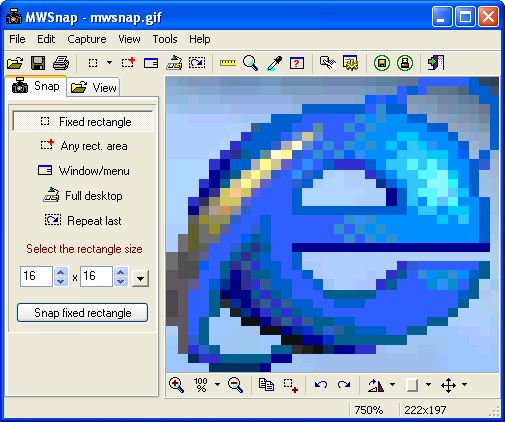 MWSnap is a small yet powerful Windows program for snapping (capturing) images from selected parts of the screen.
 Current version is capable of capturing the whole desktop, a highlighted window, an active menu, a control, or a fixed or free rectangular part of the screen. MWSnap handles 5 most popular graphics formats and contains several graphical tools: a zoom, a ruler, a color picker and a window spy. It can be also used as a fast picture viewer or converter.
MWSnap does not require installation and does not need any special dlls, drivers or system files which can mess up your system.
MWSnap is freeware, but your donations are gladly accepted.
Current stable version: 3.00.0.74, 06 Jul 2002
Platform: any 32-bit Windows (including XP)
Download:
v.3.00 as Setup (recommended): site 1, site 2 (643 KB)
v.3.00 as ZIP file: site 1, site 2 (601 KB) Be sure to unpack internal "Lang" subfolder!
Up-to-date languages pack: MWSnapLang.zip (123 KB, 16 Mar 2003)
Mirek's Free Windows Software
51 Essential Programs For A Freeware Only PC | Freeware Mission
The Freeware Mission started exactly one month ago. My Windows XP powered PC crashed and I had to reinstall everything in it. I decided to try something different: install only freeware programs except Windows XP (I might try Ubuntu later ;). I was a little bit uncertain at first, because I was using some commercial programs (Microsoft Office, Nero, BitDefender etc.) and I wasn’t sure that I could find good freeware alternatives. But I did after all.
My computer can do now everything it could do before the crash, but now it has only freeware programs installed. Here is the list of essential freeware programs that I chose to install, please consider donating a few bucks to the people that made the open source programs presented in this list.
See the list here:
51 Essential Programs For A Freeware Only PC | Freeware Mission
My computer can do now everything it could do before the crash, but now it has only freeware programs installed. Here is the list of essential freeware programs that I chose to install, please consider donating a few bucks to the people that made the open source programs presented in this list.
See the list here:
51 Essential Programs For A Freeware Only PC | Freeware Mission
FoxTab
FoxTab is a Firefox extension that brings innovative and attractive 3D tab management to Firefox.
Firefox users can now benefit from a new level of web surfing experience.
FoxTab enables grouping, filtering, closing and switching between tabs quickly and easily.
There are 5 fascinating eye candy layouts which you can choose from:
FoxTab supports all the major OS: Windows XP, Windows Vista, Mac OS X and Linux.
FoxTab
Firefox users can now benefit from a new level of web surfing experience.
FoxTab enables grouping, filtering, closing and switching between tabs quickly and easily.
There are 5 fascinating eye candy layouts which you can choose from:
| Stack | - Thumbnails are 3D-stacked one behind the other. |
| Wall | - Thumbnails are displayed on a concaved virtual 3D wall. |
| Grid | - Thumbnails are aligned on a grid. |
| Row | - Thumbnails are arranged horizontally. |
| Carousel | - Thumbnails are placed and accessed circularly.. |
FoxTab supports all the major OS: Windows XP, Windows Vista, Mac OS X and Linux.
FoxTab
List of free awesome programs for Windows - WikiPaul - Paul Swanson's wiki
I started this list as a collection of free awesome software for Windows that I'd found over the years.
Features that help inclusion to the list: No-cost, open source, useful, resourse-light, good UI, and most importantly, me liking it.
I have a local mirror of the open source programs here.
List of free awesome programs for Windows - WikiPaul - Paul Swanson's wiki
Features that help inclusion to the list: No-cost, open source, useful, resourse-light, good UI, and most importantly, me liking it.
I have a local mirror of the open source programs here.
List of free awesome programs for Windows - WikiPaul - Paul Swanson's wiki
Hack The Registry to Make Your System Shut Down More Quickly: TRUE
When’s the last time you didn’t have an application hang on you during shutdown? XP waits a grueling 20 seconds by default before trying to kill services that are still running when you’re trying to get out of the office, but you can knock this down to as low as zero with a quintet of registry hacks.
 Make the following changes in regedit:
From: 25 Most Popular Windows Tips: The Best Explained and Worst Debunked
- Under HKEY_USERS\.DEFAULT\Control Panel\Desktop, change the values for WaitToKillAppTimeout and HungAppTimeout to 1000 or 2000 (this is the wait time in milliseconds).
- Under HKEY_CURRENT_USER\Control Panel\Desktop, change the values for WaitToKillAppTimeout and HungAppTimeout to 1000 or 2000.
- Under HKEY_LOCAL_MACHINE\System\CurrentControlSet\Control, change the value for WaitToKillAppTimeout to 1000 or 2000.
- Use the same value for all three settings.
From: 25 Most Popular Windows Tips: The Best Explained and Worst Debunked
How to Manually Download and Install Windows Updates · EmergingTechs.com
Recently I was faced with a situation where I had an automatic update that wouldn’t install. To try and troubleshoot this issue, I needed a way to download the update so I could install it manually. Since Microsoft doesn’t offer such an option, I had to look elsewhere for help. Luckily, there is a program that was created to do just this.
Windows Update Downloader can manually download any update for Windows Vista, XP, 2003, 2000, Office 2003, and even Exchange 2003. It’s also great to use in conjunction with a Windows Vista Unattended Installation CD and Windows XP Unattended Installation CD so the updates are installed with the OS. Just follow these steps to get started.
Step 1: Download Windows Update Downloader and install it.
Step 2: Download the Update List for the product you wish to download updates for and double click it to automatically import it.
read full artaicle here : How to Manually Download and Install Windows Updates · EmergingTechs.com
Windows Update Downloader can manually download any update for Windows Vista, XP, 2003, 2000, Office 2003, and even Exchange 2003. It’s also great to use in conjunction with a Windows Vista Unattended Installation CD and Windows XP Unattended Installation CD so the updates are installed with the OS. Just follow these steps to get started.
Step 1: Download Windows Update Downloader and install it.
Step 2: Download the Update List for the product you wish to download updates for and double click it to automatically import it.
read full artaicle here : How to Manually Download and Install Windows Updates · EmergingTechs.com
15 Most Useful Productivity Tips for Windows Users | Dumb Little Man

Welcome to Dumb Little Man! Each week we provide a handful of tips that will save you money, increase your productivity, or simply keep you sane.
15 Most Useful Productivity Tips for Windows Users
 Our pursuit of increased productivity is endless. Right when you think that you are at your peak productivity level, new ideas or technologies pop out of nowhere and force you to reconsider your process.
Listen, no matter how good things are, there are always things that can be tweaked to perform better. Take the PC for example. Out of the box, a Windows PC can be very unproductive since most of the applications that come pre-installed aren't very functional. In this post, I'll show typical Windows users how they can double or even triple their productivity.

15 Most Useful Productivity Tips for Windows Users | Dumb Little Man
How to Find Drivers for Unknown Devices in Device Manager · EmergingTechs.com
Yesterday I reinstalled Windows on a laptop for one of our users at work. When the installation was complete, I popped in the driver CD to begin the process of installing the drivers that Windows didn’t install. For some reason the CD only contained two of the eight drivers that I needed. Normally, tracking down the right driver can be a huge annoyance, especially when your devices are showing up with generic names like PCI Device, Video Controller, System Device, or Unknown Device. But with the help of a little utility, I was able to find all of the drivers that I needed saving me lots of time and frustration.
This little utility is called Unknown Devices and it works with Windows 95, 98, 98se, 2000, XP, 2003 and Vista. It’s also a portable application so it requires no installation.
When you run it, Unknown Devices immediately lists out all of the devices that Windows cannot find a driver for and tells you what each one is.
How to Find Drivers for Unknown Devices in Device Manager · EmergingTechs.com
This little utility is called Unknown Devices and it works with Windows 95, 98, 98se, 2000, XP, 2003 and Vista. It’s also a portable application so it requires no installation.
When you run it, Unknown Devices immediately lists out all of the devices that Windows cannot find a driver for and tells you what each one is.
How to Find Drivers for Unknown Devices in Device Manager · EmergingTechs.com
Subscribe to:
Posts (Atom)