Windows XP is designed to be compatible with the broadest possible amount of hardware and software. As a result, more operating system services than necessary are started or modules you don’t need are loaded.
This can lead to problems; in extreme cases, installation can take hours, lots of unwanted and sometimes useless programs and services are installed and the user interface is optimised simply to look pretty. All this can be to the detriment of system performance and reliability.
If you’ve installed Windows XP a couple of times, you’ll be familiar with the amount of time you need to spend customising it to your requirements – installing up-to-date drivers and getting rid of unnecessary ballast, with the aim of creating a fast, slim and secure operating system from the resource-gobbling monster that is the default Windows XP.
Nlite to the rescueOne easy way to get to the root of the problem is to use the freeware program Nlite to create a made-to-measure Windows XP installation CD. The biggest benefit of this is the almost endless configuration options this procedure offers.
Whether you are talking about integrating service packs, hotfixes and drivers, removing unwanted components or adding Registry tweaks, you can use this remarkable little program to create your own personalised XP installation CD.
The software, which is just 1.37MB in size, is available on the Nlite website. We used version 1 Beta 6 and, despite its beta status, it gave us no problems.
The program has since moved to Release Candidate 5 status. The program is only free for non-commercial personal use.
The big benefit of this free software is its modular construction: you don’t have to perform all the XP modifications shown in this feature in the sequence shown.
You can use the program’s main menu to decide exactly which XP components you want to include on your personalised installation CD and which to leave out.
This makes it possible, for example, to make updated Windows XP CDs that include hotfixes, altered system settings, or with unwanted XP components left out.
You do need about three hours and a bit of patience to use this utility effectively. Whatever you do, make sure after creating your Mini XP CD you take time to test it.
To test your customised CD, use an empty partition or separate hard disk to reduce the risk of losing your data. Alternatively, it’s an ideal use for software like Microsoft Virtual PC or Vmware Workstation.
You can use virtual PCs created with these utilities to carry out a risk-free installation of the Nlite-modified XP version. You don’t even have to burn a CD or DVD, as both Virtual PC and VMware can use ISO image files directly to install the OS.
Whichever route you take, you’ll need a valid Windows XP licence key, and the installation will still be subject to the Microsoft licensing and product activation requirements.
Feature: Improve Windows XP and boost performance - Personal Computer World
Showing posts with label XP. Show all posts
Showing posts with label XP. Show all posts

20 Things the Average Person Doesn’t Know About Windows XP » Blog Archive Alice Hill’s Real Tech News - Independent Tech
By Unknown Writer
Via Digg
1. It boasts how long it can stay up. Go to the Command Prompt in the Accessories menu from the All Programs start button option, and then type ’systeminfo’. The computer will produce a lot of useful info, including the uptime. If you want to keep these, type ’systeminfo > info.txt’. This creates a file called info.txt you can look at later with Notepad. (Professional Edition only).

2. You can delete files immediately, without having them move to the Recycle Bin first. Go to the Start menu, select Run… and type ‘gpedit.msc’; then select User Configuration, Administrative Templates, Windows Components, Windows Explorer and find the Do not move deleted files to the Recycle Bin setting. Set it. Poking around in gpedit will reveal a great many interface and system options, but take care — some may stop your computer behaving as you wish. (Professional Edition only).
3. You can lock your XP workstation with two clicks of the mouse. Create a new shortcut on your desktop using a right mouse click, and enter ‘rundll32.exe user32.dll,LockWorkStation’ in the location field. Give the shortcut a name you like. That’s it — just double click on it and your computer will be locked. And if that’s not easy enough, Windows key + L will do the same.
4. XP hides some system software you might want to remove, such as Windows Messenger, but you can make it show everything. Using Notepad or Edit, edit the text file /windows/inf/sysoc.inf, search for the word ‘hide’ and remove it. You can then go to the Add or Remove Programs in the Control Panel, select Add/Remove Windows Components and there will be the software and you can now uninstall it.
5. For those skilled in the art of DOS batch files, XP has a number of interesting new commands. These include ‘eventcreate’ and ‘eventtriggers’ for creating and watching system events, ‘typeperf’ for monitoring performance of various subsystems, and ’schtasks’ for handling scheduled tasks. As usual, typing the command name followed by /? will give a list of options.
6. XP has IP version 6 support — the next generation of IP. Unfortunately this is more than your ISP has, so you can only experiment with this on your LAN. Type ‘ipv6 install’ into Run… (it’s OK, it won’t ruin your existing network setup) and then ‘ipv6 /?’ at the command line to find out more. If you don’t know what IPv6 is, don’t worry.
7. You can at last get rid of tasks on the computer from the command line by using ‘taskkill /pid’ and the task number, or just ‘tskill’ and the process number. Find that out by typing ‘tasklist’, which will also tell you a lot about what’s going on in your system.
8. XP will treat Zip files like folders, which is nice if you’ve got a fast machine. On slower machines, you can make XP leave zip files alone by typing ‘regsvr32 /u zipfldr.dll’ at the command line. If you change your mind later, you can change things back by typing ‘regsvr32 zipfldr.dll’.
9. XP has ClearType — Microsoft’s anti-aliasing font display technology — but doesn’t have it enabled by default. It’s well worth trying, especially if you were there for DOS and all those years of staring at a screen have given you the eyes of an astigmatic bat. To enable ClearType, right click on the desktop, select Properties, Appearance, Effects, select ClearType from the second drop-down menu and enable the selection. Expect best results on laptop displays. If you want to use ClearType on the Welcome login screen as well, set the registry entry HKEY_USERS/.DEFAULT/Control Panel/Desktop/FontSmoothingType to 2.
10. You can use Remote Assistance to help a friend who’s using network address translation (NAT) on a home network, but not automatically. Get your pal to email you a Remote Assistance invitation and edit the file. Under the RCTICKET attribute will be a NAT IP address, like 192.168.1.10. Replace this with your friend’s real IP address — they can find this out by going to www.whatismyip.com — and get them to make sure that they’ve got port 3389 open on their firewall and forwarded to the errant computer.
11. You can run a program as a different user without logging out and back in again. Right click the icon, select Run As… and enter the user name and password you want to use. This only applies for that run. The trick is particularly useful if you need to have administrative permissions to install a program, which many require. Note that you can have some fun by running programs multiple times on the same system as different users, but this can have unforeseen effects.
12. Windows XP can be very insistent about you checking for auto updates, registering a Passport, using Windows Messenger and so on. After a while, the nagging goes away, but if you feel you might go insane before that point, run Regedit, go to HKEY_CURRENT_USER/Software/Microsoft/Windows/Current Version/Explorer/Advanced and create a DWORD value called EnableBalloonTips with a value of 0.
13. You can start up without needing to enter a user name or password. Select Run… from the start menu and type ‘control userpasswords2′, which will open the user accounts application. On the Users tab, clear the box for Users Must Enter A User Name And Password To Use This Computer, and click on OK. An Automatically Log On dialog box will appear; enter the user name and password for the account you want to use.
14. Internet Explorer 6 will automatically delete temporary files, but only if you tell it to. Start the browser, select Tools / Internet Options… and Advanced, go down to the Security area and check the box to Empty Temporary Internet Files folder when browser is closed.
15. XP comes with a free Network Activity Light, just in case you can’t see the LEDs twinkle on your network card. Right click on My Network Places on the desktop, then select Properties. Right click on the description for your LAN or dial-up connection, select Properties, then check the Show icon in notification area when connected box. You’ll now see a tiny network icon on the right of your task bar that glimmers nicely during network traffic.
16. The Start Menu can be leisurely when it decides to appear, but you can speed things along by changing the registry entry HKEY_CURRENT_USER/Control Panel/Desktop/MenuShowDelay from the default 400 to something a little snappier. Like 0.
17. You can rename loads of files at once in Windows Explorer. Highlight a set of files in a window, then right click on one and rename it. All the other files will be renamed to that name, with individual numbers in brackets to distinguish them. Also, in a folder you can arrange icons in alphabetised groups by View, Arrange Icon By… Show In Groups.
18. Windows Media Player will display the cover art for albums as it plays the tracks — if it found the picture on the Internet when you copied the tracks from the CD. If it didn’t, or if you have lots of pre-WMP music files, you can put your own copy of the cover art in the same directory as the tracks. Just call it folder.jpg and Windows Media Player will pick it up and display it.
19. Windows key + Break brings up the System Properties dialogue box; Windows key + D brings up the desktop; Windows key + Tab moves through the taskbar buttons.
20. XP secretly KNOWS that the average user has no idea what they are doing. Therefore, it doesn’t let you do really stupid things like deleting the windows directory (at least not without spending several hours convincing it that you REALLY want to do this). Oh yeah, and internet explorer kinda sucks, get Firefox.
» 20 Things the Average Person Doesn’t Know About Windows XP » Blog Archive Alice Hill’s Real Tech News - Independent Tech
Ashampoo Photo Commander 5 Full Free » Alfred’s Tech Blog

Ashampoo Photo Commander 5 is an all-in-one application for organizing, editing, sharing and presenting photo collections. It also features additional creativity tools and audio and video management capabilities, making it a complete media management package.
Ashampoo Photo Commander 5 Full Free » Alfred’s Tech Blog
51 Essential Programs For A Freeware Only PC | Freeware Mission
The Freeware Mission started exactly one month ago. My Windows XP powered PC crashed and I had to reinstall everything in it. I decided to try something different: install only freeware programs except Windows XP (I might try Ubuntu later ;). I was a little bit uncertain at first, because I was using some commercial programs (Microsoft Office, Nero, BitDefender etc.) and I wasn’t sure that I could find good freeware alternatives. But I did after all.
My computer can do now everything it could do before the crash, but now it has only freeware programs installed. Here is the list of essential freeware programs that I chose to install, please consider donating a few bucks to the people that made the open source programs presented in this list.
See the list here:
51 Essential Programs For A Freeware Only PC | Freeware Mission
My computer can do now everything it could do before the crash, but now it has only freeware programs installed. Here is the list of essential freeware programs that I chose to install, please consider donating a few bucks to the people that made the open source programs presented in this list.
See the list here:
51 Essential Programs For A Freeware Only PC | Freeware Mission
FoxTab
FoxTab is a Firefox extension that brings innovative and attractive 3D tab management to Firefox.
Firefox users can now benefit from a new level of web surfing experience.
FoxTab enables grouping, filtering, closing and switching between tabs quickly and easily.
There are 5 fascinating eye candy layouts which you can choose from:
FoxTab supports all the major OS: Windows XP, Windows Vista, Mac OS X and Linux.
FoxTab
Firefox users can now benefit from a new level of web surfing experience.
FoxTab enables grouping, filtering, closing and switching between tabs quickly and easily.
There are 5 fascinating eye candy layouts which you can choose from:
| Stack | - Thumbnails are 3D-stacked one behind the other. |
| Wall | - Thumbnails are displayed on a concaved virtual 3D wall. |
| Grid | - Thumbnails are aligned on a grid. |
| Row | - Thumbnails are arranged horizontally. |
| Carousel | - Thumbnails are placed and accessed circularly.. |
FoxTab supports all the major OS: Windows XP, Windows Vista, Mac OS X and Linux.
FoxTab
Hack The Registry to Make Your System Shut Down More Quickly: TRUE
When’s the last time you didn’t have an application hang on you during shutdown? XP waits a grueling 20 seconds by default before trying to kill services that are still running when you’re trying to get out of the office, but you can knock this down to as low as zero with a quintet of registry hacks.
 Make the following changes in regedit:
From: 25 Most Popular Windows Tips: The Best Explained and Worst Debunked
- Under HKEY_USERS\.DEFAULT\Control Panel\Desktop, change the values for WaitToKillAppTimeout and HungAppTimeout to 1000 or 2000 (this is the wait time in milliseconds).
- Under HKEY_CURRENT_USER\Control Panel\Desktop, change the values for WaitToKillAppTimeout and HungAppTimeout to 1000 or 2000.
- Under HKEY_LOCAL_MACHINE\System\CurrentControlSet\Control, change the value for WaitToKillAppTimeout to 1000 or 2000.
- Use the same value for all three settings.
From: 25 Most Popular Windows Tips: The Best Explained and Worst Debunked
11 Most Useful XP Tips and Tricks

Even after the launch of Windows Vista, Windows XP is still very popular Operating System worldwide. There are probably hundreds of tips and tricks for Windows XP but most of them have nothing to do with a common user. So I have listed 11 tips which can prove to be extremely beneficial for users.
1. Block any website you want, without any software
A website can be easily blocked without using any software. Just follow these stepsa). Browse C:\Windows\system32\drivers\etc
b). Find and open the file named “hosts” in notepad
c). There you will see a line “127.0.0.1 localhost”
d). Just under this line add “127.0.0.2 www.sitenameuwanttoblock.com” , without quotes.
Save the changes and the mentioned site will no longer be accessible.
See all of the tips here: 11 Most Useful XP Tips and Tricks
Disabling XP’s Indexing Service Can Improve Performance:TRUE
You can almost ignore the question of whether XP’s Indexing Service slows down your computer. The fact is it doesn’t do much good anyway. Indexing is supposed to help Windows keep better tabs on files, but it does a terrible job of it and offers the user no options for configuring what gets indexed. It’s almost beside the point that it can slow your system—sometimes only a little and sometimes to an outright crawl.
Even Microsoft acknowledges that the Indexing Service can cause hard drives to thrash and that it “uses lots of pagefile space and lots of CPU time”—in fact, Microsoft often recommends disabling it. Note, however, that Vista’s integrated search and indexing system is considerably improved.
There are several ways to turn off XP’s Indexing Service. The most thorough is to open the Control Panel, open Administrative Tools, then open Services. Scroll down to Indexing Service and double-click it. Change the Startup type to “Disabled.”
25 Most Popular Windows Tips: The Best Explained and Worst Debunked
Even Microsoft acknowledges that the Indexing Service can cause hard drives to thrash and that it “uses lots of pagefile space and lots of CPU time”—in fact, Microsoft often recommends disabling it. Note, however, that Vista’s integrated search and indexing system is considerably improved.
There are several ways to turn off XP’s Indexing Service. The most thorough is to open the Control Panel, open Administrative Tools, then open Services. Scroll down to Indexing Service and double-click it. Change the Startup type to “Disabled.”

Some non-Registry Windows tweaks | MakeUseOf.com
While I am busy compiling some more Registry tweaks for you, I realised that there are some tweaks you can make to your PC without ever having to touch the Registry at all. So here’s some off the top of my head.
1. Tweak your trash bin
 If you right-click on your trash bin and choose “properties”, you can tweak a few trash features. For example, you can turn off the eternally annoying “are you sure you want to delete this?” dialogue (I love being rid of this stupid feature). You can also reduce the space in your trash bin (to prevent it from filling up too much) and you can even disable the trash bin so that anything you delete bypasses the trash and gets deleted off the system immediately (I would use this one with caution though).
2. Turn off the stupid boot up and log off music
When you turn your computer on and off, Windows gives you a stupid tune. You can easily disable this music (as well as other sound effects) by going to your system set-up (in your start menu) and choosing the sounds & audio devices option. Clicking on the “sounds” tab, you can see a list of all the sound effects and you can either change them or disable them. Now you can have a silent boot up in the morning!
3. Delete hidden “thumbs.db” files
 when you have pictures on your hard drive, Windows makes a cache to make the picture load faster next time. The cache is called “thumbs.db” and is normally cloaked so you have no idea it is there. But these “thumbs.db” files build up and up and it takes up a lot of hard-drive space.
To reveal them and delete them, go to your Windows Explorer and choose Tools, Folder Options, and make sure that Show common tasks in folders (in XP) is selected under the General tab. This will give you a Windows warning that doing this may potentially hurt your system but in my opinion, it’s safe enough. This will then reveal the hidden system files, including the “thumbs.db” caches in each folder. Deleting them will free up some disk space and some folder clutter. But when you load the pictures again, the “thumbs.db” cache will return so you need to keep on top of this and delete them on a regular basis.
If you’d rather not change anything in your Windows Explorer, you can also view and delete the hidden files by viewing each folder in a FTP client such as FileZilla.
4. Right-clicking the start menu
 If you right-click on your start menu button and choose “properties” and then “task list”, you can change a few irritating features. For example, XP normally hides “inactive program icons” in the system tray. You can easily disable that irritating feature so they ALL show up. You can also remove the clock if you don’t need it.
5. Have Windows Explorer show the information YOU want

When you open a folder in Explorer, in the right hand pane, you have headers such as “name”, “size”, “type”, etc. If you right-click on one of these headers, you can untick what you don’t need and Explorer remembers for next time.
6. Change the folder icons
Tired of the same icons in your Windows Explorer or desktop? Then right-click on the icon, choose properties and then the “customize” tab. You can choose from one of Windows pre-set icons or you can download your own.

This only really works for hard-drive folders and self-made desktop shortcuts. I’ve yet to see a software program that allows you to change their default icon. I’ll be writing about more XP tweaks, both registry and non-registry, soon! Meanwhile, do you have any good tweaks to share? Tell us in the comments!
Mark O’Neill is a freelance writer, proofreader, editor and blogger. Check out his blog at http://www.betterthantherapy.net
Some non-Registry Windows tweaks | MakeUseOf.com
1. Tweak your trash bin
If you right-click on your trash bin and choose “properties”, you can tweak a few trash features. For example, you can turn off the eternally annoying “are you sure you want to delete this?” dialogue (I love being rid of this stupid feature). You can also reduce the space in your trash bin (to prevent it from filling up too much) and you can even disable the trash bin so that anything you delete bypasses the trash and gets deleted off the system immediately (I would use this one with caution though).2. Turn off the stupid boot up and log off music
When you turn your computer on and off, Windows gives you a stupid tune. You can easily disable this music (as well as other sound effects) by going to your system set-up (in your start menu) and choosing the sounds & audio devices option. Clicking on the “sounds” tab, you can see a list of all the sound effects and you can either change them or disable them. Now you can have a silent boot up in the morning!
3. Delete hidden “thumbs.db” files
when you have pictures on your hard drive, Windows makes a cache to make the picture load faster next time. The cache is called “thumbs.db” and is normally cloaked so you have no idea it is there. But these “thumbs.db” files build up and up and it takes up a lot of hard-drive space.To reveal them and delete them, go to your Windows Explorer and choose Tools, Folder Options, and make sure that Show common tasks in folders (in XP) is selected under the General tab. This will give you a Windows warning that doing this may potentially hurt your system but in my opinion, it’s safe enough. This will then reveal the hidden system files, including the “thumbs.db” caches in each folder. Deleting them will free up some disk space and some folder clutter. But when you load the pictures again, the “thumbs.db” cache will return so you need to keep on top of this and delete them on a regular basis.
If you’d rather not change anything in your Windows Explorer, you can also view and delete the hidden files by viewing each folder in a FTP client such as FileZilla.
4. Right-clicking the start menu
If you right-click on your start menu button and choose “properties” and then “task list”, you can change a few irritating features. For example, XP normally hides “inactive program icons” in the system tray. You can easily disable that irritating feature so they ALL show up. You can also remove the clock if you don’t need it.5. Have Windows Explorer show the information YOU want
When you open a folder in Explorer, in the right hand pane, you have headers such as “name”, “size”, “type”, etc. If you right-click on one of these headers, you can untick what you don’t need and Explorer remembers for next time.
6. Change the folder icons
Tired of the same icons in your Windows Explorer or desktop? Then right-click on the icon, choose properties and then the “customize” tab. You can choose from one of Windows pre-set icons or you can download your own.
This only really works for hard-drive folders and self-made desktop shortcuts. I’ve yet to see a software program that allows you to change their default icon. I’ll be writing about more XP tweaks, both registry and non-registry, soon! Meanwhile, do you have any good tweaks to share? Tell us in the comments!
Mark O’Neill is a freelance writer, proofreader, editor and blogger. Check out his blog at http://www.betterthantherapy.net
Some non-Registry Windows tweaks | MakeUseOf.com
Master Tutorial to Make Your Windows XP Super Fast - Tweaking with Vishal
Master Tutorial to Make Your Windows XP Super Fast - Tweaking with Vishal
This tutorial is meant for increasing the performance of Windows XP, either it can be a fresh installation or an older windows.
1.) Following is a registry file containing a few registry modifications, which are completely safe and can increase the performance of Windows. Just download the attached ZIP file, extract it and then run the file:
xp_reg_codes.zip
2.) Right-click on Desktop and select Properties, Now in the new window goto Appearance tab and click on Effects button. Now in the new opened window uncheck the following options:
a.) Use the following transition effect for menus & tooltips.
b.) Show shadows under menus.
c.) Show window contents while dragging. (you may remain this option checked as I hv in my screenshot. It depends upon ur choice.)
d.) Use the following method to smooth edges of screen fonts. You may select “Standard” for this. I hv selected “Clear Type” coz I hv a TFT, it doesnt work properly for CRT monitors.

3.) Right-click on My Computer icon on Desktop and select Properties (or press

Now disable all unnecessary options in Visual Effects tab, you can remain following options enabled according to your requirements:
a.) Show window contents while dragging.
b.) Smooth edges of screen fonts.
c.) Use common tasks in folders (If u use the left side pane in My computer, I don’t use it.)
d.) Use drop shadows on icon labels on the desktop. (to make the desktop icons label transparent.)
e.) Use visual styles on windows and buttons. (If u use XP themes.)

Read full article here:
Master Tutorial to Make Your Windows XP Super Fast - Tweaking with Vishal
This tutorial is meant for increasing the performance of Windows XP, either it can be a fresh installation or an older windows.
1.) Following is a registry file containing a few registry modifications, which are completely safe and can increase the performance of Windows. Just download the attached ZIP file, extract it and then run the file:
xp_reg_codes.zip
2.) Right-click on Desktop and select Properties, Now in the new window goto Appearance tab and click on Effects button. Now in the new opened window uncheck the following options:
a.) Use the following transition effect for menus & tooltips.
b.) Show shadows under menus.
c.) Show window contents while dragging. (you may remain this option checked as I hv in my screenshot. It depends upon ur choice.)
d.) Use the following method to smooth edges of screen fonts. You may select “Standard” for this. I hv selected “Clear Type” coz I hv a TFT, it doesnt work properly for CRT monitors.
3.) Right-click on My Computer icon on Desktop and select Properties (or press

Now disable all unnecessary options in Visual Effects tab, you can remain following options enabled according to your requirements:
a.) Show window contents while dragging.
b.) Smooth edges of screen fonts.
c.) Use common tasks in folders (If u use the left side pane in My computer, I don’t use it.)
d.) Use drop shadows on icon labels on the desktop. (to make the desktop icons label transparent.)
e.) Use visual styles on windows and buttons. (If u use XP themes.)
Read full article here:
Master Tutorial to Make Your Windows XP Super Fast - Tweaking with Vishal
20 (most) beautiful themes for Windows XP - instant fundas
20 (most) beautiful themes for Windows XP
The following is a list of some of the choicest visual styles that can give Windows XP a total makeover. Pick any!
Note: This list contains only shell styles that can be applied directly by patching Uxtheme or through StyleXP. No Window Blinds skins here.
Also see
25 beautiful icon sets for Windows
21 most beautiful mouse cursors for Windows
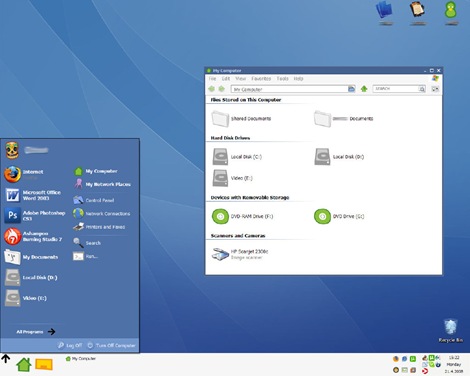
Watercolor Arrow - This theme looks so cool with a light colored taskbar, blue menu and funny hand-drawn type icons.

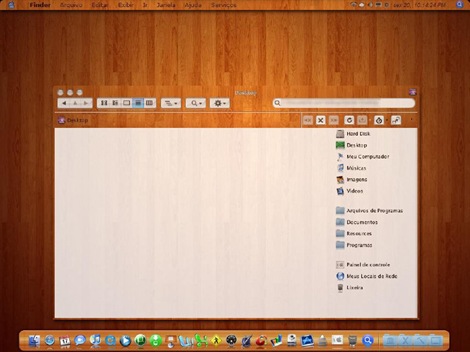
Wood Visual Styles - Transforms everything to wood! This theme is tested in Windows XP SP2. A few people reported problems with SP3.
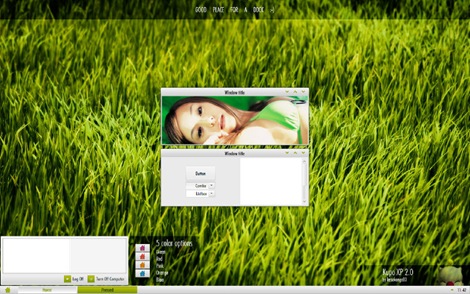
Kupo XP 2.0 - A very minimalistic design available in 5 colors.
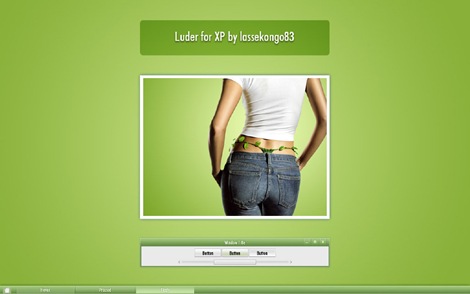
Luder - Another minimalistic theme with a clean green look.
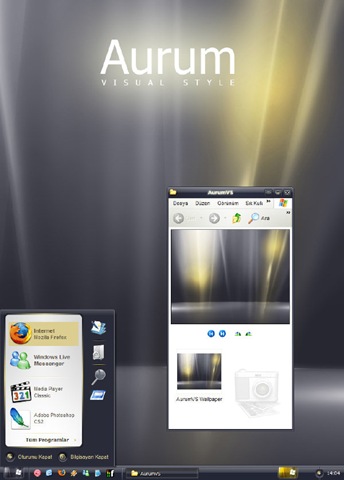
Aurum VS 1.1 - A bit of Vista's Aurora look.
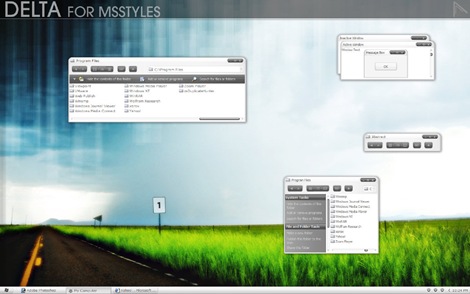
Delta VS - A silver gray theme with mild colors.
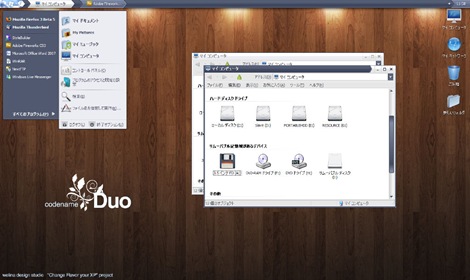
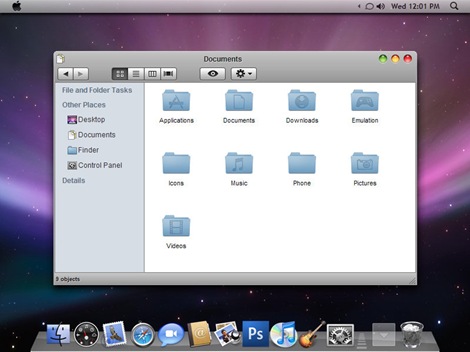
DUO - A mixture of Vista and Mac.
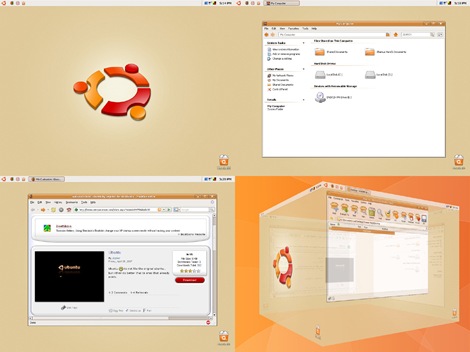
Ubuntu XP - This is the closest Windows XP can get to Ubuntu! Brilliantly done.
Simplebox - This time it's Fedora.

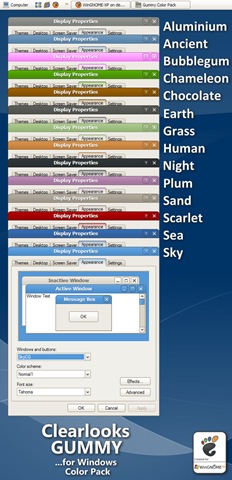
Clearlooks Gummy - This theme pack gives a "Gnome" look to Windows XP. Available in 14 different colors!
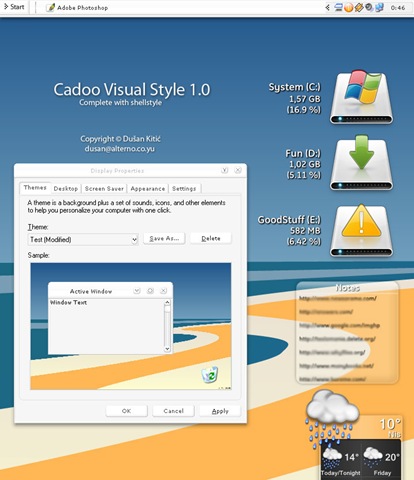
Cadoo Visual Style 1.0 - A smooth whitish theme that gives a great contrast to any icon set.
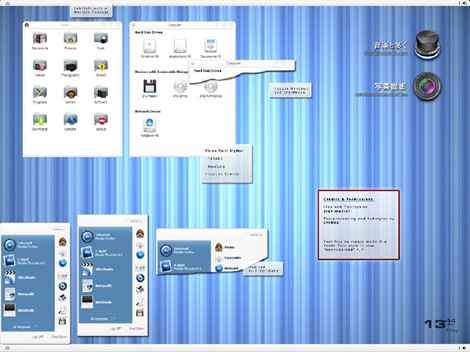
animus - A Mac like blue and white theme that works great with Mac icon set.
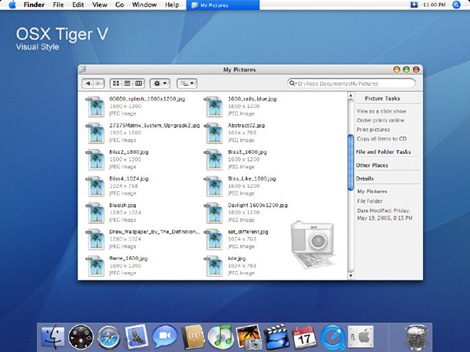
OSX Tiger V - Give Windows the Mac look. Very nicely done.
Leopard X - Another Mac theme with a slightly darker look.
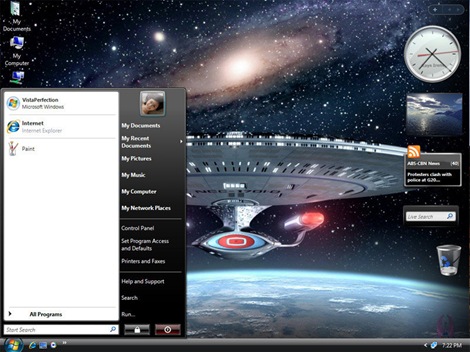
VistaPerfection X4 - One of the best looking Vista theme for Windows XP.
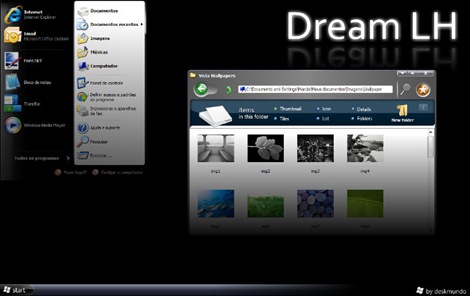
Dream LH 1.0 - Another theme with the Vista look, but darkish and black explorer window and task panel.
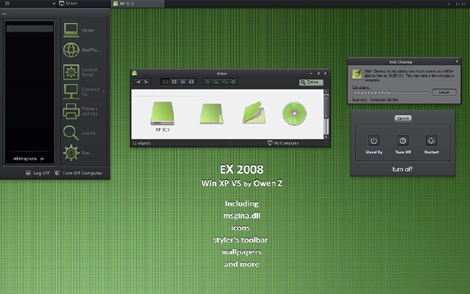
EX2008 Visual Style - A darkish theme with a tinge of green. Very minimalistic.
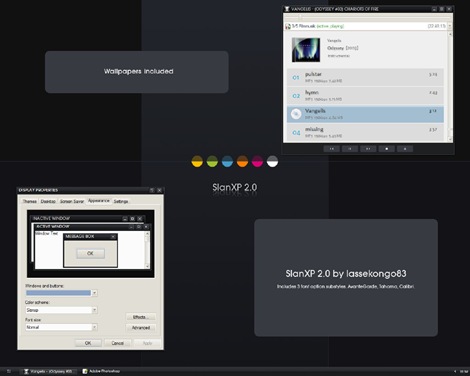
SlanXP 2.0 - Another dark theme for Windows XP.
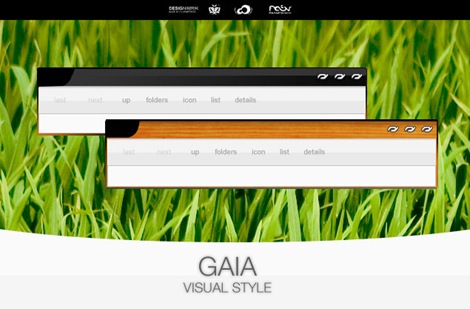
GAIA - A very simple yet elegant theme with mild colors.
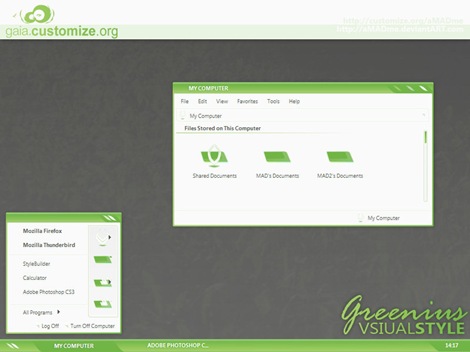
Greenius.VS - Another beautiful green theme. (Green seems to be the preferred color for designers)
P.S: This is how to install the themes:
1. Download and install Uxtheme patcher. During install a message will be diaplyed that important Windows file are being replaced and will ask you to insert the windows CD to fix it. Just ignore and click "contine"
2. Download the theme pack and copy the folder containing .msstyles and shellstyle.dll (this is inside another folder) to C:\WINDOWS\Resources\Themes\
3. After this is done, right-click on desktop and click Properties. Now click on the Appearance tab. Under Windows and Buttons you will find the list of all the themes you installed. Select one from the list and click Apply.
Sometimes, the downloaded pack contains additional utilites like Styler and Rocketdock etc to bring other changes to Windows. It's up to you whether you want to install the additional stuff. You can visit the original page of the theme author for more instruction on how to use those.
20 (most) beautiful themes for Windows XP
Subscribe to:
Posts (Atom)